Set up your eBO reports.
Click by click. Save two reports in eBO once, download two years of your data, and add it to Practice KPIs. After that it's about five minutes a month.
Before you start
- Your eClinicalWorks login, the one that can open eBO Reports.
- Practice KPIs installed on this computer.
- Your access code. It's in the email we sent you.
- About 30 minutes, most of it waiting.
Tip: keep this page open beside eBO. You'll copy from here and paste there.
Part 1. Save the two reports in eBO once
You give eBO two reports, KPI Money Export and KPI Visits Export. You only do this the first time.
Saved them before? Update them
When we send a new version, do steps 4 to 12 again with the new Copy buttons, and save each one with the same name. eBO asks whether to replace it: click Yes. Then close eBO and open it again. Your old files and everything already in Practice KPIs stay as they are.
-
Open eBO
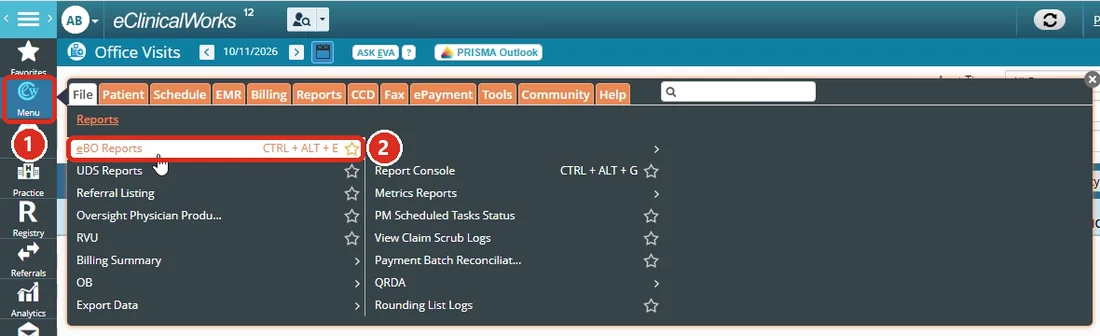
In eClinicalWorks, click Menu on the left. Then click eBO Reports (under Reports). eBO opens in a new window.
-
Start a new report
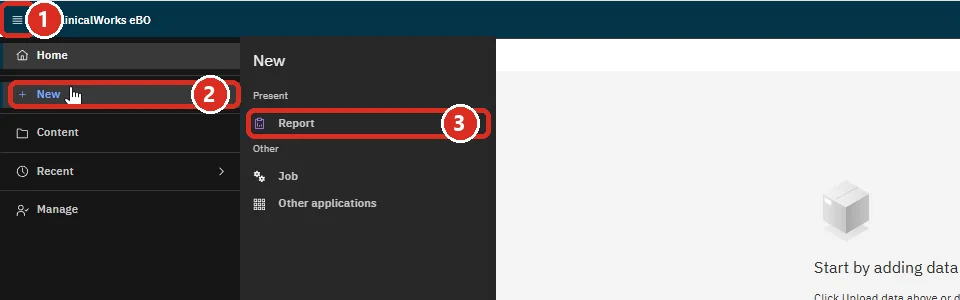
In eBO, click the three lines at the top left. Click New, then Report.
-
Pick Blank
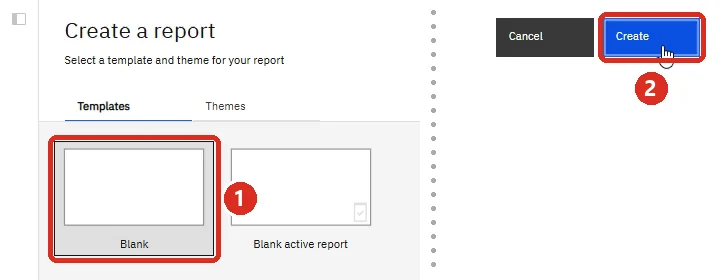
Click Blank, then click Create at the top right.
-
Copy KPI Money from this page
Click the blue button. It turns green and says Copied.
Button not working? Download it as a file, open it in Notepad, press Ctrl+A, then Ctrl+C.
-
Open the paste box
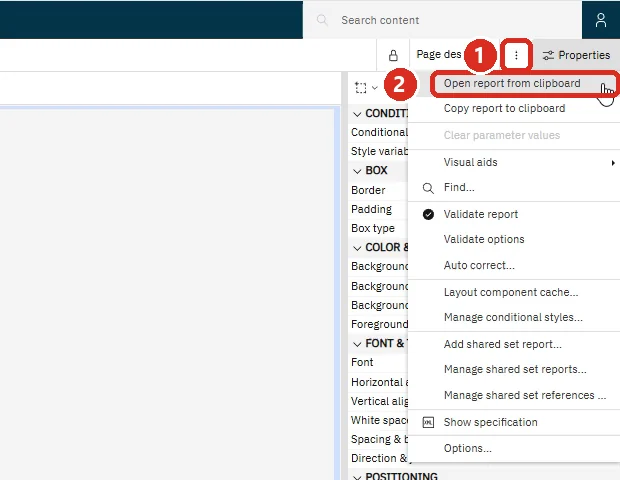
Back in eBO, click the three dots at the top right, just left of Properties. Click Open report from clipboard.
-
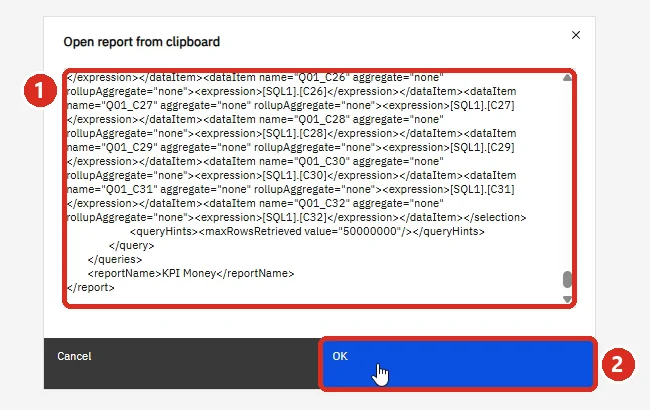
Paste, then OK
Click inside the white box. Hold Ctrl and press V. A lot of text appears. Click OK.
The screen changes to a grid of columns. That's right.
-
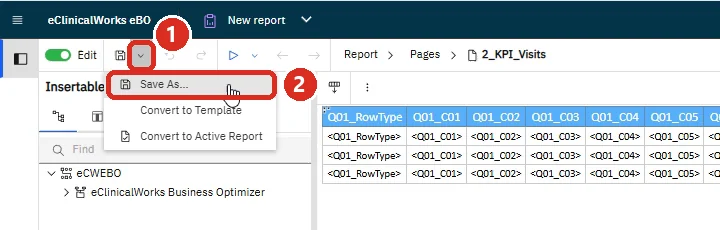
Save As
At the top left, click the small arrow next to the save icon. Click Save As.
-
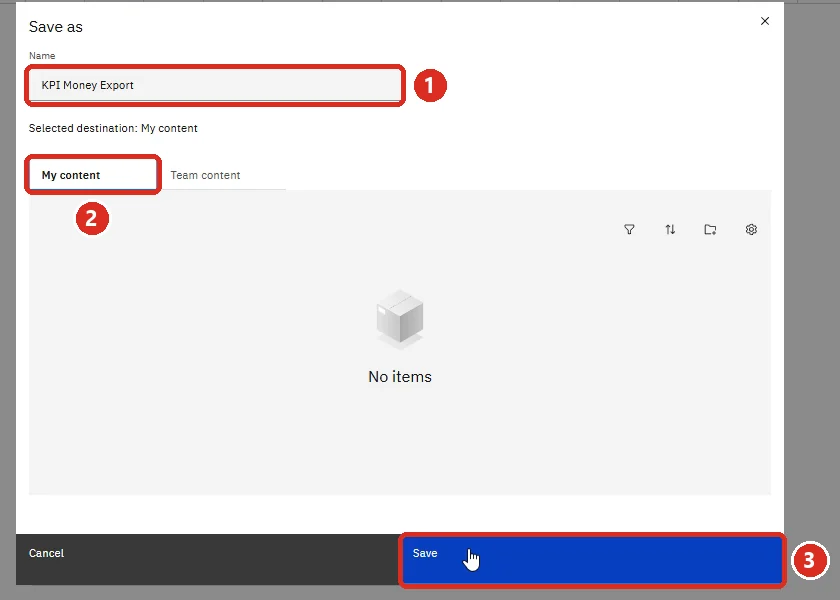
Name it KPI Money Export
Type KPI Money Export in Name. Click My content. Click Save.
-
Start another new report
Click the three lines at the top left, then New, then Report. Click Blank, then Create.
-
Copy KPI Visits from this page
Click the blue button. It turns green and says Copied.
Button not working? Download it as a file, open it in Notepad, press Ctrl+A, then Ctrl+C.
-
Paste it in eBO
Click the three dots at the top right, then Open report from clipboard. Click inside the box, hold Ctrl and press V, then click OK.
-
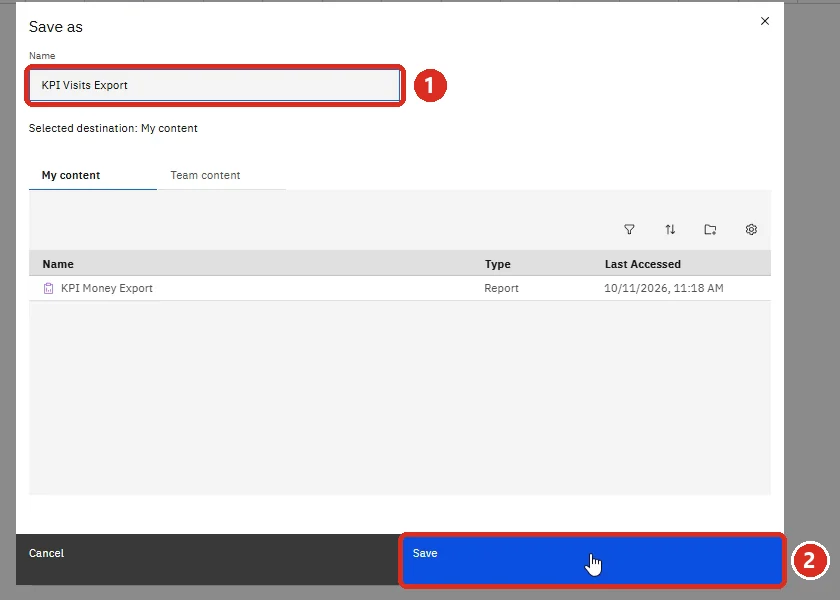
Save it as KPI Visits Export
Click the small arrow next to the save icon, then Save As. Type KPI Visits Export, check that My content is picked, and click Save. You'll see KPI Money Export already in the list.
Then close eBO and open it again. The page where you pick the dates only comes up after a fresh start.
Optional, if your eBO shows it: make each report always run as CSV. In My content, click the report's three dots, then Properties. On the Report tab, set Report format to CSV. Still check CSV at each run.
Part 2. Download two years of data once
Now you run each report once to get the last 24 months. Each run makes one file in your Downloads folder.
Every run is Run as, then CSV. Not Excel, not HTML. The next steps show where.
-
Go to My content
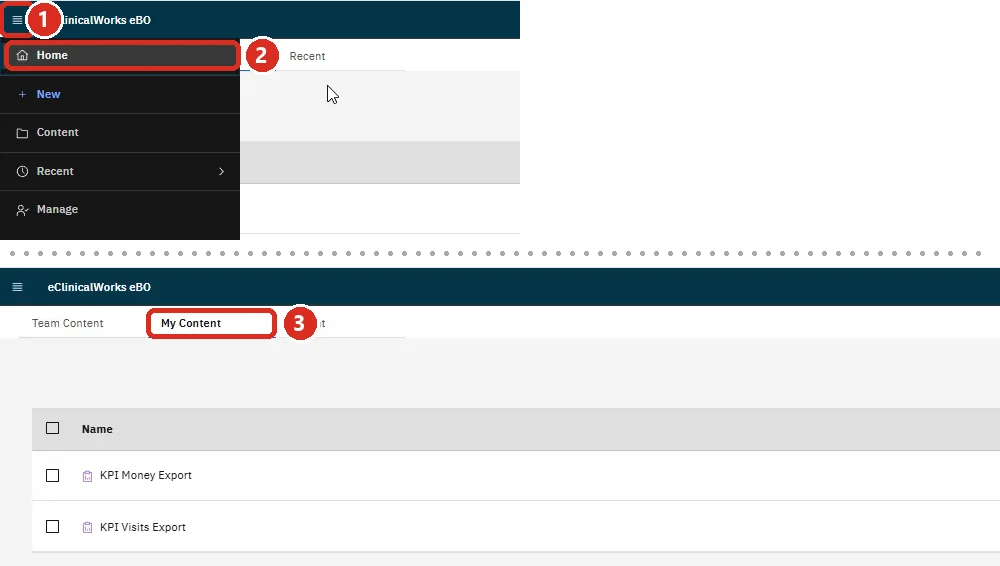
Click the three lines at the top left, then Home. Click the My content tab. Your two reports are there.
-
Run KPI Visits Export
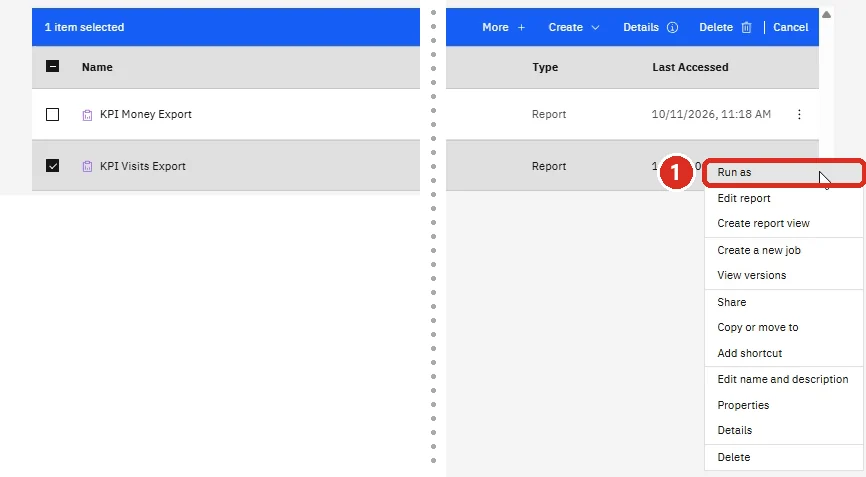
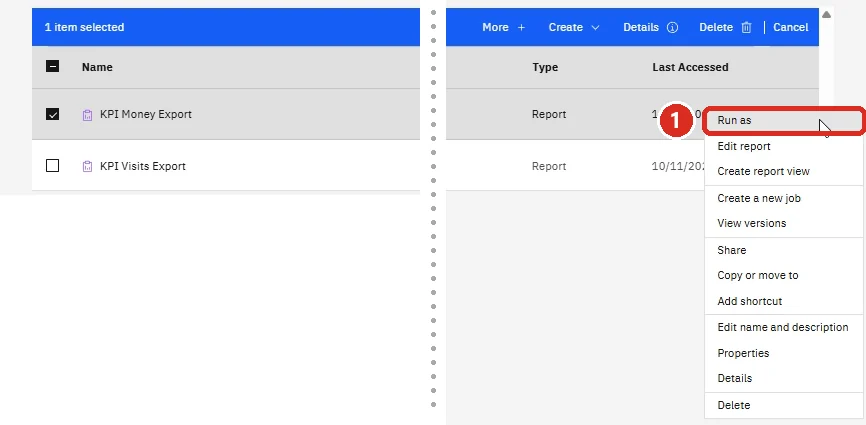
On the KPI Visits Export row, click the three dots at the far right end. Click Run as.
-
Pick CSV, then Run
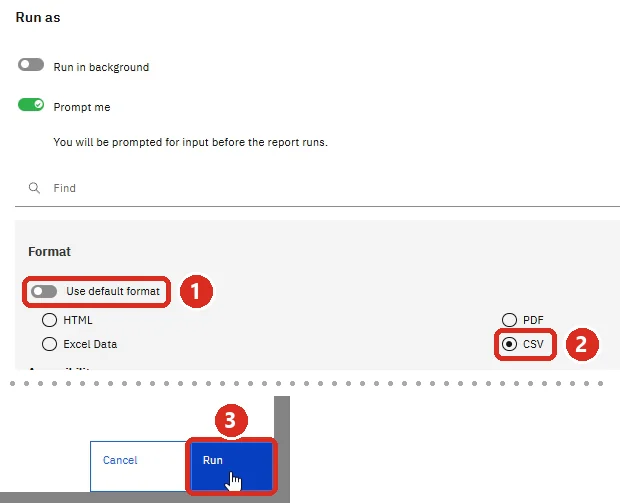
Click Use default format so it turns off. Click CSV. Click Run at the bottom right.
Always CSV. eBO starts on HTML. Excel or HTML files won't load in Practice KPIs, so check that CSV is picked every time you run a report.
-
Pick Setup, then OK
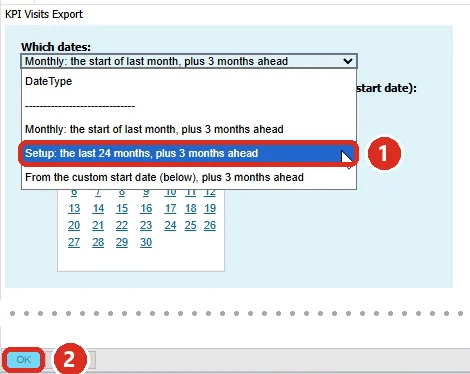
Click the Which dates box. Pick Setup: the last 24 months, plus 3 months ahead. Click OK at the very bottom left of the screen.
Skip "DateType" and the dashed line at the top of the list. They're only labels. There's no date to pick here: a calendar only comes up, on a second page, when you choose a custom choice and click Next.
-
Wait for the download
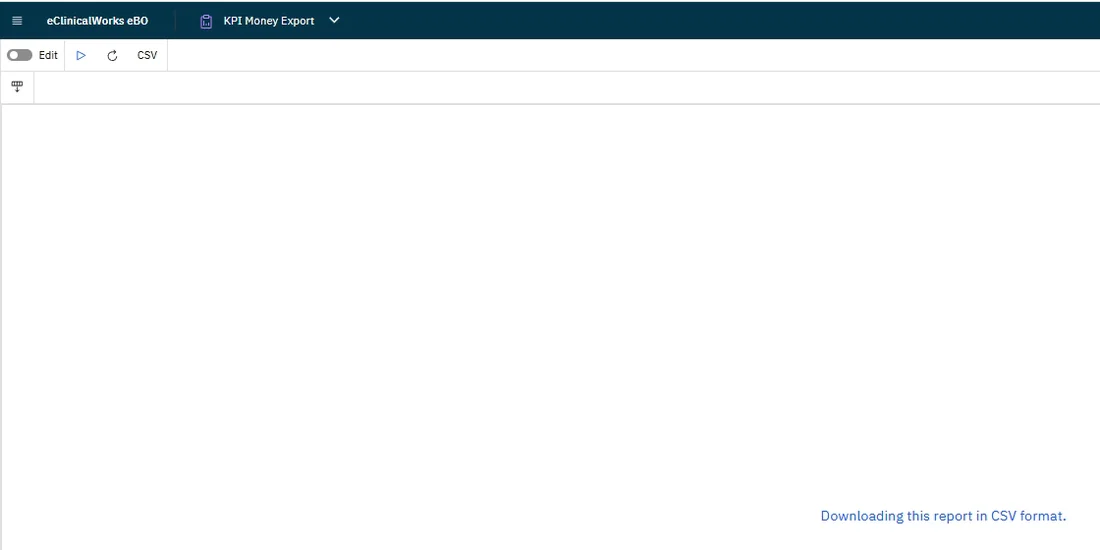
eBO says Working for a few minutes, then Downloading this report in CSV format. The file lands in your Downloads folder.
-
Run KPI Money Export
Go back to My content (step 13). On the KPI Money Export row, click the three dots, then Run as. Turn off Use default format, click CSV, then Run.
Always CSV. eBO starts on HTML. Excel or HTML files won't load in Practice KPIs, so check that CSV is picked every time you run a report.
-
Pick Setup, smaller practices, then OK
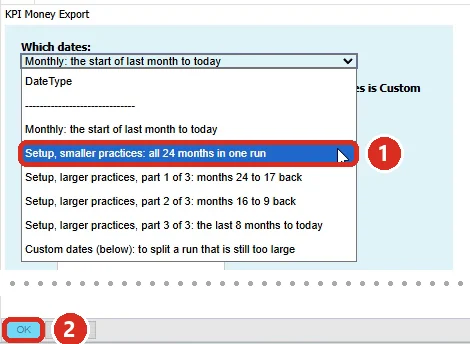
In Which dates, pick Setup, smaller practices: all 24 months in one run. Click OK at the bottom left. Wait for the download.
If KPI Money stops or shows an error
A busy practice has too much for one run, and eBO stops a run at about 10 minutes. That's fine. Run KPI Money three times instead, picking one part each time:
- Setup, larger practices, part 1 of 3
- Setup, larger practices, part 2 of 3
- Setup, larger practices, part 3 of 3
You'll have three Money files. Add all of them in Part 3. If one part still stops, see If something goes wrong.
Part 3. Add the files to Practice KPIs
-
Open Practice KPIs and enter your access code
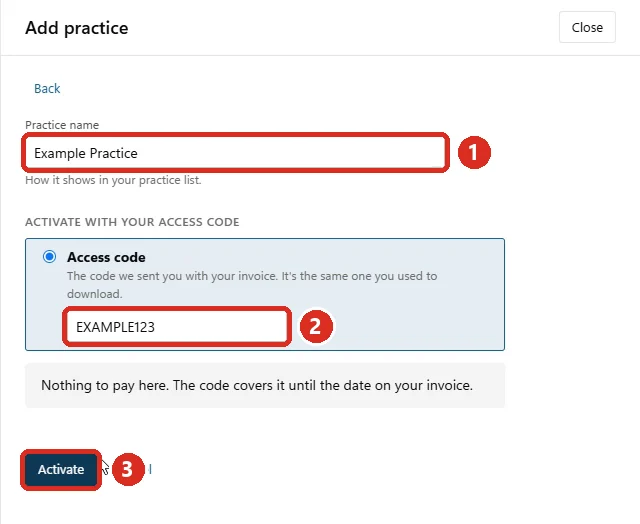
Open Practice KPIs. If it asks for your access code, click Enter your access code. Type your practice's name and the code from our email. Click Activate.
-
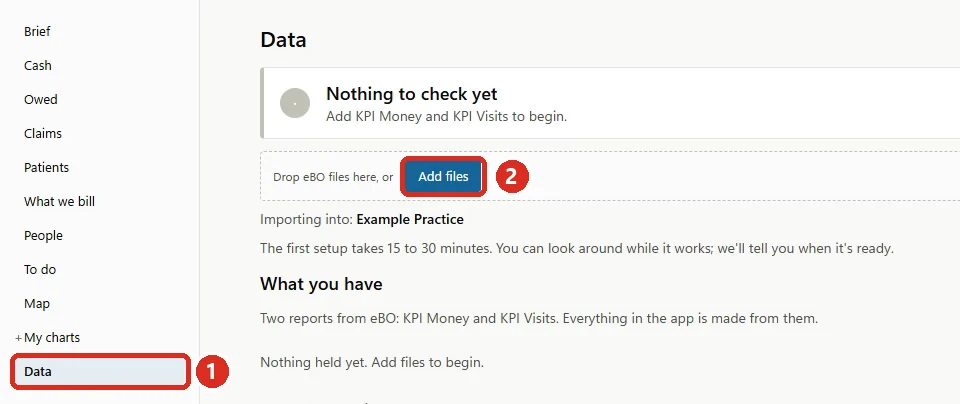
Click Data, then Add files
Click Data on the left. Click Add files.
-
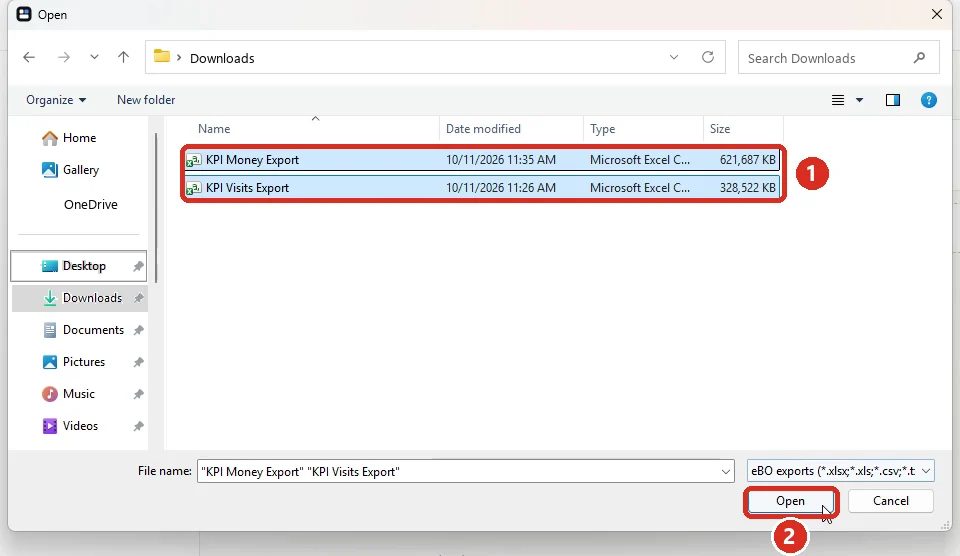
Pick the files, then Open
Click Downloads on the left. Click KPI Money Export. Hold Ctrl and click KPI Visits Export (and any other KPI files from today). Click Open.
Or drag the files from your Downloads folder onto the Practice KPIs window.
-
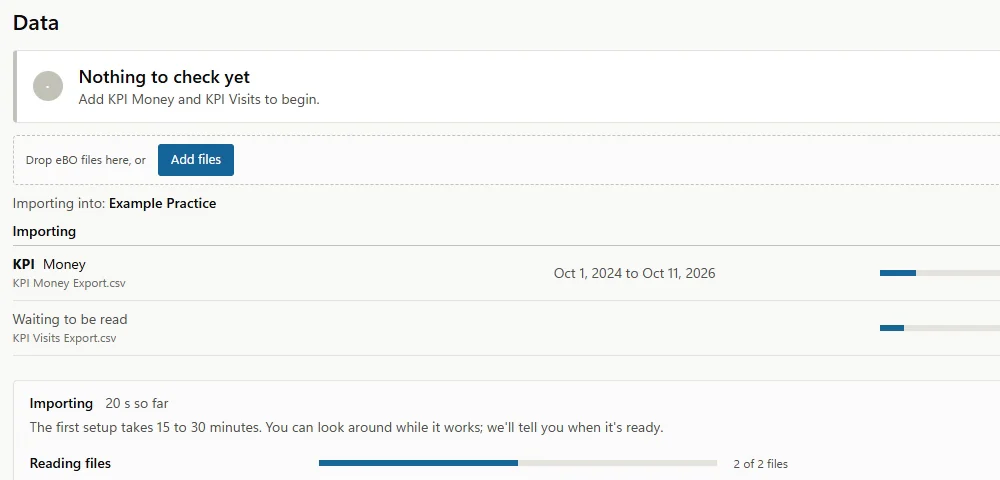
Let it load
The first load takes 15 to 30 minutes. You can look around while it works. The app tells you when it's ready.
Every month about 5 minutes
- Open eBO and go to My content (steps 1 and 13).
- KPI Visits Export: three dots, Run as, CSV (never Excel or HTML), Run. Which dates already says Monthly. Click OK.
- KPI Money Export: the same, Run as and CSV. Leave it on Monthly, click OK.
- In Practice KPIs: Data, Add files, pick the two new files, Open.
Any day of the month works. Extra or overlapping files are fine: the newest run wins for each day.
Missed a month or more?
Pick your own start date instead of Monthly. Use the 1st of the first month you missed.
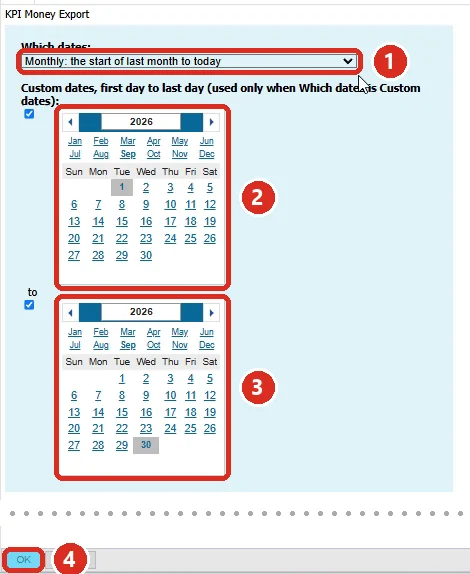
- KPI Money Export: in Which dates, pick Custom dates (then Next) and click Next. In the first calendar click that 1st. In the second calendar click today. Click OK.
- KPI Visits Export: in Which dates, pick From a custom start date (then Next) and click Next. In the calendar click the same 1st. Click OK.
The arrows beside the year change the year, and the month names jump to that month.
Then add both files to the app as usual.
If something goes wrong
- I can't find eBO Reports in the eClinicalWorks menu.
- Your login may not include eBO. Ask whoever manages eClinicalWorks at your practice to turn it on.
- Ctrl+V pasted nothing.
- Go back to this page and click the Copy button again, then paste straight away. Or use Download it as a file under the button.
- eBO shows an error when I save or run.
- Click the three dots at the top right, then Validate report. Copy the message and send it to [email protected].
- A run stops after about 10 minutes.
- eBO stops runs that take too long. Split it into shorter stretches: pick Custom dates (then Next) on KPI Money, click Next and pick the dates (or use the three Setup parts), and run, for example, 4 months at a time. Add all the files. Overlaps are fine.
- I ran a report as Excel or HTML.
- Practice KPIs can't read those. Run it again with Run as and CSV (steps 14 and 15), and add the CSV file instead.
- I picked "DateType" or the dashed line.
- Those are labels. Open the Which dates box again and pick a real choice.
- Where are my files?
- In your Downloads folder, named KPI Money Export and KPI Visits Export. If you ran one twice, the second ends in (1). That's fine: the app reads what's inside, not the name.
- The access code doesn't work.
- Check it against your invoice, then write to [email protected].
Stuck anywhere else? Write to [email protected] and tell us the step number.